
TestOrigen
  • About Us
  • Services
    • Acceptance Testing Services
    • Automation Testing Services
    • Compatibility Testing Services
    • Content Testing Services
    • End to End Testing Services
    • Functional Testing Services
    • Performance and Load Testing Services
    • Regression Testing Services
    • Sanity Testing Services
    • System Testing Services
    • Usability Testing Services
  • Career
  • Blog
  • Request a quote
  • Resources
    • Press Releases
    • QA & Testing Videos
    • Infographics
    • Case Studies
  • Contact Us
Select Page

Simple Guide to Learn FileZilla Quickly

by Poonam | Jan 29, 2019 | Software Testing | 1 comment

Simple Guide to Learn FileZilla Quickly

Simple Guide to Learn FileZilla Quickly. filezilla ftpThe FileZilla FTP is open source software comprises of the FileZilla client and FileZilla server. The FileZilla clients are accessible for Linux, Windows, and Mac OSX while FileZilla server setup is accessible just for windows.

The FileZilla FTP client software supports FTPS, FTP and SFTP however the help for SFTP (SSH File Transfer Protocol), which can be utilized to share folders over a system, isn’t implemented in FileZilla Server. FileZilla FTP was begun as a software engineering class project in January 2001 by Tim Kosse and two schoolmates.

You can utilize this FileZilla free software to transfer and deal with your files in your webserver. When you wish to transfer your site and number of files are more or size of documents is large. At that point, you can utilize FileZilla file transfer as uploading a document of substantial size through cPanel File Manager can cause an error in uploading.

The greater part of the cPanel accounts accompanies a framework FileZilla account, through which you can access and manage all the records in your home directory.  Passwords of framework represent cPanel and FTP are the equivalents much of the time.

To utilize FileZilla FTP client, to upload and manage the site, please follow these steps –

1st Step: Installation

First of all download FileZilla FTP by clicking the link-https://filezilla-project.org/download.php.

Following the installation wizard:

1st-Step-Installation. FileZilla FTP

2nd Step: Open FileZilla

After installation, you will see a shortcut on the desktop, make a double click on it to open the product.

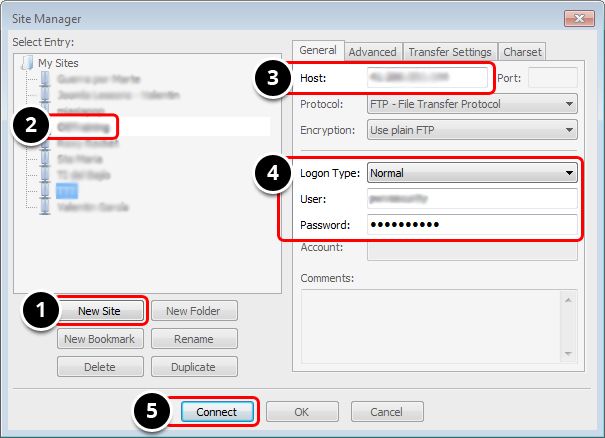
In the FileZilla, windows menu go to File > Site Manager. At that point follow these 5 steps:

  1. Click New Site.
  2. Include a custom name for this site.
  3. Include the hostname like http://www.mywebsite.com or the IP address like http://192.168.0.1
  4. Set the Logon Type to “Normal” and insert your FTP password and username. For clients that have CPanel with their facilitating, those equivalent login subtleties may work additionally for FTP access.
  5. Press the “Connect” button.

2nd-Step-Open-FileZilla. FileZilla FTP

3rd Step: Edit, Upload and Download files.

On the left-hand part, you have the files from your PC

On the right-hand part, you have the files from your server. Double click on the web organizer (frequently this is “public_html”) and inside you have the website’s documents.

3rd-Step-Edit-Upload-and-Download-files. FileZilla FTP

Editing documents

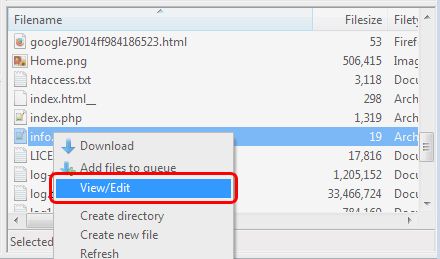
To edit a document in the server records region, right click on the record and pick View/Edit

After saving the changes from your custom word processor (for instance, Notepad++) FileZilla will inquire as to whether you need to update the document on the server. When beginning with FileZilla, it’s basic to overlook this progression.
Editing-documents. FileZilla FTP

Downloading records

To download a record from the server documents zone, right click on the record and pick Download.

Downloading-records. FileZilla FTP

Uploading files

To upload a record from your PC to your server, right click on the document and pick Filezilla upload.

Uploading-files. FileZilla FTP

FileZilla Server Client Features:

The Filezilla gives the accompanying features. There are numerous features yet a couple of vital are recorded here.

  • Simplified to download and upload
  • Synchronized directory browsing
  • Searches record on the server remotely
  • It can move documents in FTP, SFTP, encoded FTP, for example, FTPS and SFTP
  • It supports IPv6
  • The file transfer process can be stopped and proceeded
  • Bookmarks for simple access to most successive use

So, when you figure out how to utilize FileZilla, you open the ways to gaining more command over your site. From your personal computer or laptop, you can roll out direct changes to the site or back up the majority of your documents with this product. When you require a stable system that gives you access to your online documents, think about what FileZilla can do for you.

Share on:

1 Comment

  1. oprolevorter
    oprolevorter on 09/08/2019 at 7:40 am

    Some genuinely select articles on this website , saved to favorites.

    Reply

Submit a Comment Cancel reply

Your email address will not be published. Required fields are marked *

Recent Posts

  • Why Load Testing is Crucial for Your App’s Success!
  • Navigating Uncertainty: The Role of QA Professionals in a Shifting Landscape
  • Testing Modern Applications with Playwright: A Comprehensive Guide
  • Exploring the Latest Advances in White Box Testing Techniques:
  • Startup Testing: Adaptability, Accountability, and Quick Development

Recent Comments

  • pendik escort on Advantageous Landscape of Integrating IoT and ERP
  • IvyInode on JIRA: The Top Agile Tool for QA
  • ElwoodSaiff on Brief Clarification of User Acceptance Testing Types
  • ElwoodSaiff on Impact of Big Data in Supply Chain Management
  • RicardoVar on The ‘sphere’ of Regression Testing

Archives

  • November 2023
  • October 2023
  • September 2023
  • August 2023
  • July 2023
  • June 2023
  • May 2023
  • September 2019
  • August 2019
  • July 2019
  • June 2019
  • May 2019
  • April 2019
  • March 2019
  • February 2019
  • January 2019
  • December 2018
  • November 2018
  • October 2018
  • September 2018
  • August 2018
  • July 2018
  • June 2018
  • May 2018
  • April 2018
  • March 2018
  • February 2018
  • January 2018
  • December 2017
  • November 2017
  • October 2017
  • September 2017
  • August 2017
  • July 2017
  • May 2017
  • April 2017
  • March 2017
  • January 2017
  • December 2016
  • September 2016
  • August 2016

Categories

  • AI Software Testing
  • Automation Testing
  • Big Data and Data Analytics
  • Case Studies
  • Demo Articles
  • ePayment Testing
  • Functional Testing
  • Game Testing
  • Hadoop
  • Infographics
  • Latest Technology
  • Mobile app testing
  • Payment Gateway
  • Performance Testing
  • Press Release
  • QA & Testing Video
  • Security Testing
  • Software Testing
  • Software Testing Tools
  • Tech News
  • Uncategorized
  • web application testing
  • Information
    • About Us
    • Services
    • Career
    • Blog
    • Request a Quote
    • Press Releases
    • QA & Testing Videos
    • Infographics
    • Case Studies
    • Contact Us
  • Services
    • Acceptance Testing Services
    • Automation Testing Services
    • Compatibility Testing Services
    • Content Testing Services
    • End to End Testing Services
    • Functional Testing Services
    • Performance and Load Testing Services
    • Regression Testing Services
    • Sanity Testing Services
    • System Testing Services
    • Usability Testing Services
  • Location

    B-88, First Floor, Sector-64,
    Noida (UP) – 201301
    +91-9654145010
    info@testorigen.com

    Follow Us
    • Follow
    • Follow
    • Follow
  • Tweets by Test_Origen
© Copyright TestOrigen 2019. All Right Reserved
Manage Cookie Consent
To provide the best experiences, we use technologies like cookies to store and/or access device information. Consenting to these technologies will allow us to process data such as browsing behavior or unique IDs on this site. Not consenting or withdrawing consent, may adversely affect certain features and functions.
Functional Always active
The technical storage or access is strictly necessary for the legitimate purpose of enabling the use of a specific service explicitly requested by the subscriber or user, or for the sole purpose of carrying out the transmission of a communication over an electronic communications network.
Preferences
The technical storage or access is necessary for the legitimate purpose of storing preferences that are not requested by the subscriber or user.
Statistics
The technical storage or access that is used exclusively for statistical purposes. The technical storage or access that is used exclusively for anonymous statistical purposes. Without a subpoena, voluntary compliance on the part of your Internet Service Provider, or additional records from a third party, information stored or retrieved for this purpose alone cannot usually be used to identify you.
Marketing
The technical storage or access is required to create user profiles to send advertising, or to track the user on a website or across several websites for similar marketing purposes.
  • Manage options
  • Manage services
  • Manage {vendor_count} vendors
  • Read more about these purposes
View preferences
  • {title}
  • {title}
  • {title}